> ## Documentation Index
> Fetch the complete documentation index at: https://docs.formo.so/llms.txt
> Use this file to discover all available pages before exploring further.
# Charts
> Build custom dashboards with line, bar, pie, and funnel charts to visualize your data.
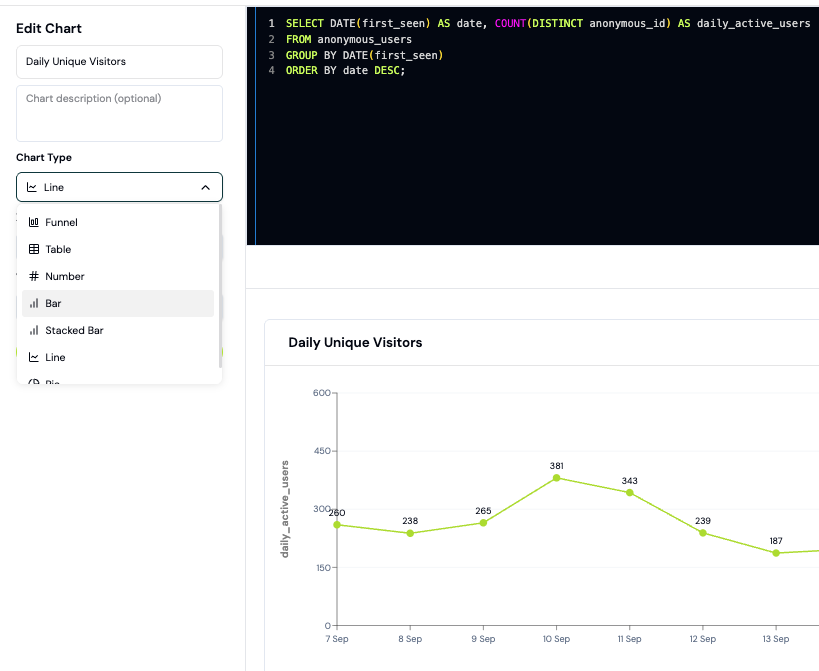 You can query, transform, and export your data:
* Create custom charts and reports with SQL.
* Use [Ask AI](/features/product-analytics/ai) to build charts and explore your data with natural language.
* Query your data from Claude, Cursor, or other AI tools via [MCP](/mcp/overview).
* Connect external [BI tools](/data/bi) directly to Formo.
## Features
### Autocomplete
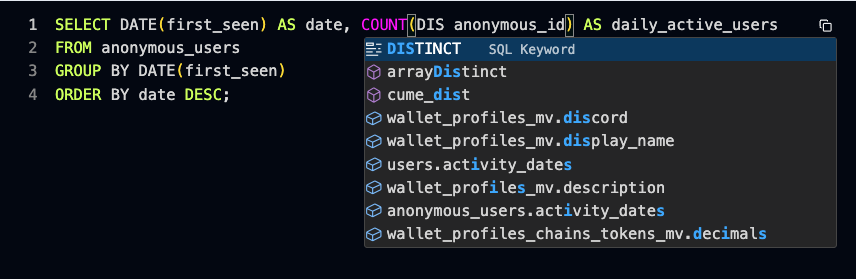
The query editor supports autocomplete for SQL including:
* Table names
* Table columns
* ClickHouse SQL keywords and functions
You can query, transform, and export your data:
* Create custom charts and reports with SQL.
* Use [Ask AI](/features/product-analytics/ai) to build charts and explore your data with natural language.
* Query your data from Claude, Cursor, or other AI tools via [MCP](/mcp/overview).
* Connect external [BI tools](/data/bi) directly to Formo.
## Features
### Autocomplete
The query editor supports autocomplete for SQL including:
* Table names
* Table columns
* ClickHouse SQL keywords and functions
 ### Text to SQL
The query editor comes with tools to ask AI to write and fix SQL code for you.
### Text to SQL
The query editor comes with tools to ask AI to write and fix SQL code for you.
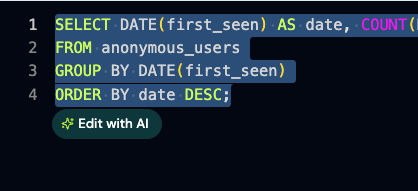 Select your query in the SQL editor to get AI-assisted query generation and debugging.
### Ask AI
Use [Ask AI](/features/product-analytics/ai) to build charts and explore your data with natural language.
Select your query in the SQL editor to get AI-assisted query generation and debugging.
### Ask AI
Use [Ask AI](/features/product-analytics/ai) to build charts and explore your data with natural language.
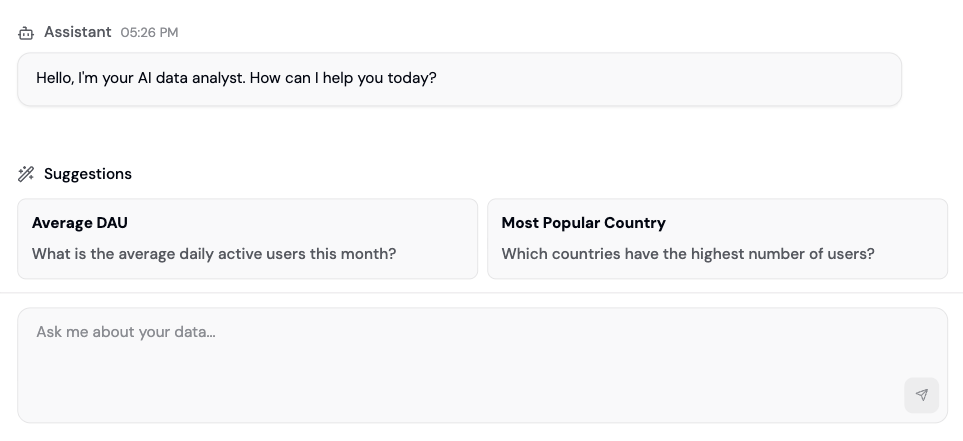 Ask AI can:
* Answer questions about your data
* Generate SQL queries
* Build custom charts and boards
* Surface patterns in your data
### Export CSV
Export the results of any query into a CSV file for use elsewhere in your data stack.
### Dune Integration
**Request access.** Dune charts are not generally available. [Request access](/integrations/dune) before following these instructions.
Charts can query on-chain data from [Dune](/integrations/dune).
```sql theme={null}
SELECT date_trunc('day', block_time) AS day, count(*) AS txns
FROM dune.ethereum.transactions
WHERE block_time > now() - interval '7' day
GROUP BY 1
ORDER BY 1
```
Autocomplete switches to Dune (Trino) functions and tables while you're writing a `dune` query.
Dune charts require a Dune API key set in **Project Settings → Integrations**. See [Dune integration](/integrations/dune) for setup instructions.
## Chart types
Here is the current list of supported chart types on Formo:
* Funnel
* Flow
* Retention
* Table
* Number
* Bar
* Stacked Bar
* Line
* Area
* Pie
***
## How to build a custom dashboard
Create a custom dashboard with charts to track your key metrics. This guide walks you through creating charts using both SQL and the AI assistant.
### Step 1: Create a board
1. Go to the [Formo Dashboard](https://app.formo.so)
2. Select your project
3. Click **Dashboards** in the left navigation
4. Click **Add board** to create a new dashboard
5. Click **Add Chart** to add your first visualization
### Step 2: Create a chart with Ask AI (Recommended)
The easiest way to create charts is using natural language:
1. Click **Ask AI** in the sidebar
2. Describe what you want to see:
* "Show me daily active users over the last 30 days"
* "What are my top 10 referrers by transaction count?"
* "Chart wallet connects by country this month"
3. AI generates the SQL query and chart
4. Click **Add to Dashboard**
**Example prompts:**
| Prompt | What you get |
| - | - |
| "Daily unique wallets last 7 days" | Line chart of wallet connects |
| "Top pages by views" | Bar chart of page rankings |
| "Conversion funnel from visit to transaction" | Funnel visualization |
| "Week-over-week retention" | Retention cohort table |
### Step 3: Create a chart with SQL
For more control, write SQL directly:
1. Click **Add Chart** > **Blank chart**
2. Write your query using Formo's schema
3. Click **Run** to preview results
4. Choose your visualization type
5. Click **Save Chart**
**Example: Daily active wallets**
```sql theme={null}
SELECT
toDate(timestamp) AS date,
countDistinct(address) AS unique_wallets
FROM events
WHERE type = 'connect'
AND timestamp >= now() - INTERVAL 30 DAY
GROUP BY date
ORDER BY date
```
Use autocomplete (`Ctrl+Space`) to see available tables and columns. See the [Data Catalog](/data/catalog) for full documentation.
### Step 4: Choose a visualization
After running your query, select the chart type that best represents your data:
| Chart Type | Best for |
| - | - |
| **Line** | Trends over time |
| **Area** | Cumulative trends over time |
| **Bar** | Comparing categories |
| **Stacked Bar** | Comparing categories across segments |
| **Pie** | Showing proportions |
| **Number** | Single KPI metric |
| **Table** | Detailed data exploration |
| **Funnel** | Conversion analysis |
| **Flow** | User path exploration |
| **Retention** | Cohort retention |
### Step 5: Organize your board
Arrange charts into a dashboard layout:
1. Open your board from **Dashboards** in the sidebar
2. Open the board actions menu and select **Edit layout**
3. Use the up and down arrows on each chart to reorder it
4. Click **Save layout** when you're done
Number charts are grouped automatically into their own row at the top of the board; other chart types follow in the order you set.
### Step 6: Share your dashboard
Share insights with your team:
* **Export** - Download individual charts as CSV
* **Share link** - Generate a view-only dashboard link
* **BI tools** - Connect Metabase, Tableau, or other tools via [direct database access](/data/bi)
### Example: Weekly metrics dashboard
Here's a starter dashboard with common metrics:
| Chart | Query description | Type |
| - | - | - |
| WAU | Unique wallets last 7 days | Number |
| Daily trend | Visitors per day last 30 days | Line |
| Top referrers | Referrers ranked by visitors | Bar |
| Conversion rate | Visitors who transacted | Number |
| Country breakdown | Users by country | Pie |
Use Ask AI to generate each chart, then arrange them on your dashboard.
This documentation is built and hosted on [Mintlify](https://mintlify.com), a developer documentation platform.
Ask AI can:
* Answer questions about your data
* Generate SQL queries
* Build custom charts and boards
* Surface patterns in your data
### Export CSV
Export the results of any query into a CSV file for use elsewhere in your data stack.
### Dune Integration
**Request access.** Dune charts are not generally available. [Request access](/integrations/dune) before following these instructions.
Charts can query on-chain data from [Dune](/integrations/dune).
```sql theme={null}
SELECT date_trunc('day', block_time) AS day, count(*) AS txns
FROM dune.ethereum.transactions
WHERE block_time > now() - interval '7' day
GROUP BY 1
ORDER BY 1
```
Autocomplete switches to Dune (Trino) functions and tables while you're writing a `dune` query.
Dune charts require a Dune API key set in **Project Settings → Integrations**. See [Dune integration](/integrations/dune) for setup instructions.
## Chart types
Here is the current list of supported chart types on Formo:
* Funnel
* Flow
* Retention
* Table
* Number
* Bar
* Stacked Bar
* Line
* Area
* Pie
***
## How to build a custom dashboard
Create a custom dashboard with charts to track your key metrics. This guide walks you through creating charts using both SQL and the AI assistant.
### Step 1: Create a board
1. Go to the [Formo Dashboard](https://app.formo.so)
2. Select your project
3. Click **Dashboards** in the left navigation
4. Click **Add board** to create a new dashboard
5. Click **Add Chart** to add your first visualization
### Step 2: Create a chart with Ask AI (Recommended)
The easiest way to create charts is using natural language:
1. Click **Ask AI** in the sidebar
2. Describe what you want to see:
* "Show me daily active users over the last 30 days"
* "What are my top 10 referrers by transaction count?"
* "Chart wallet connects by country this month"
3. AI generates the SQL query and chart
4. Click **Add to Dashboard**
**Example prompts:**
| Prompt | What you get |
| - | - |
| "Daily unique wallets last 7 days" | Line chart of wallet connects |
| "Top pages by views" | Bar chart of page rankings |
| "Conversion funnel from visit to transaction" | Funnel visualization |
| "Week-over-week retention" | Retention cohort table |
### Step 3: Create a chart with SQL
For more control, write SQL directly:
1. Click **Add Chart** > **Blank chart**
2. Write your query using Formo's schema
3. Click **Run** to preview results
4. Choose your visualization type
5. Click **Save Chart**
**Example: Daily active wallets**
```sql theme={null}
SELECT
toDate(timestamp) AS date,
countDistinct(address) AS unique_wallets
FROM events
WHERE type = 'connect'
AND timestamp >= now() - INTERVAL 30 DAY
GROUP BY date
ORDER BY date
```
Use autocomplete (`Ctrl+Space`) to see available tables and columns. See the [Data Catalog](/data/catalog) for full documentation.
### Step 4: Choose a visualization
After running your query, select the chart type that best represents your data:
| Chart Type | Best for |
| - | - |
| **Line** | Trends over time |
| **Area** | Cumulative trends over time |
| **Bar** | Comparing categories |
| **Stacked Bar** | Comparing categories across segments |
| **Pie** | Showing proportions |
| **Number** | Single KPI metric |
| **Table** | Detailed data exploration |
| **Funnel** | Conversion analysis |
| **Flow** | User path exploration |
| **Retention** | Cohort retention |
### Step 5: Organize your board
Arrange charts into a dashboard layout:
1. Open your board from **Dashboards** in the sidebar
2. Open the board actions menu and select **Edit layout**
3. Use the up and down arrows on each chart to reorder it
4. Click **Save layout** when you're done
Number charts are grouped automatically into their own row at the top of the board; other chart types follow in the order you set.
### Step 6: Share your dashboard
Share insights with your team:
* **Export** - Download individual charts as CSV
* **Share link** - Generate a view-only dashboard link
* **BI tools** - Connect Metabase, Tableau, or other tools via [direct database access](/data/bi)
### Example: Weekly metrics dashboard
Here's a starter dashboard with common metrics:
| Chart | Query description | Type |
| - | - | - |
| WAU | Unique wallets last 7 days | Number |
| Daily trend | Visitors per day last 30 days | Line |
| Top referrers | Referrers ranked by visitors | Bar |
| Conversion rate | Visitors who transacted | Number |
| Country breakdown | Users by country | Pie |
Use Ask AI to generate each chart, then arrange them on your dashboard.
This documentation is built and hosted on [Mintlify](https://mintlify.com), a developer documentation platform.