> ## Documentation Index
> Fetch the complete documentation index at: https://docs.formo.so/llms.txt
> Use this file to discover all available pages before exploring further.
# Explorer
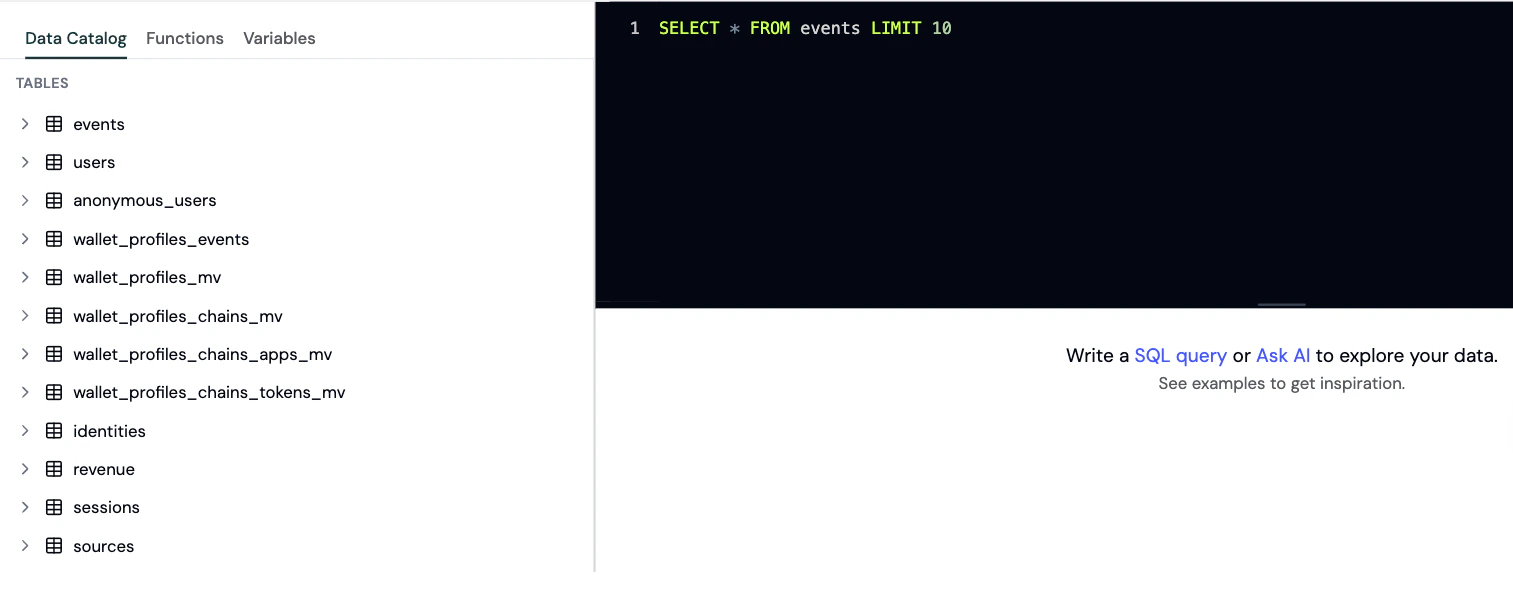
> Run custom SQL queries against your analytics data warehouse to build reports, export results, and answer questions beyond dashboards.
 ## When to use the Explorer
Use the Explorer when you need:
* **Ad-hoc analysis** for specific questions
* **Custom calculations** that aren't available in standard dashboards
* **Complex joins** across multiple data types
* **Testing queries** for custom charts and dashboards
* **Data validation** to verify metrics
## How to use the explorer
### Step 1: Open the Explorer
1. Go to the [Formo Dashboard](https://app.formo.so)
2. Select your project
3. Click **Explorer** in the left navigation
### Step 2: Write your query
Enter your SQL query in the editor. Formo uses ClickHouse SQL syntax.
**Example: Daily active wallets**
```sql theme={null}
SELECT
toDate(timestamp) AS date,
countDistinct(address) AS daily_active_wallets
FROM events
WHERE type = 'connect'
AND timestamp >= now() - INTERVAL 30 DAY
GROUP BY date
ORDER BY date
```
### Step 3: Run and visualize
1. Click **Run** to execute your query
2. View results in the table below
3. Optionally, switch to chart view to visualize the data
### Step 4: Export or save as a chart
* **Export as CSV**: Click **Export** to download your query results as a CSV file for offline analysis, reporting, or importing into other tools.
* **Save as a custom chart**: Turn any query into a reusable visualization on your [Charts](/features/product-analytics/charts) page: choose from line, bar, pie, table, and more.
## Available tables
See the [Data Catalog](/data/catalog#tables) for the full list of tables, column definitions, query patterns, and example queries.
## Best practices
* Use `LIMIT` to control result size. Default is 100 rows; maximum is 1,000,000 rows
* Use date filters to improve query performance
* See the [Event Spec](/data/events/overview) for available event properties
* Use **Ask AI** to help write and fix queries
## Saving queries
After writing a useful query, save it as a chart on your custom dashboard:
1. On the [Charts](/features/product-analytics/charts) page, select an existing board or create a new one
2. Add a new chart by clicking **Add Chart**
3. Paste your query into the SQL editor and run it
4. Choose a visualization type (line, bar, table, etc.)
Your query becomes a reusable chart on your dashboard that you can share with your team.
This documentation is built and hosted on [Mintlify](https://mintlify.com), a developer documentation platform.
## When to use the Explorer
Use the Explorer when you need:
* **Ad-hoc analysis** for specific questions
* **Custom calculations** that aren't available in standard dashboards
* **Complex joins** across multiple data types
* **Testing queries** for custom charts and dashboards
* **Data validation** to verify metrics
## How to use the explorer
### Step 1: Open the Explorer
1. Go to the [Formo Dashboard](https://app.formo.so)
2. Select your project
3. Click **Explorer** in the left navigation
### Step 2: Write your query
Enter your SQL query in the editor. Formo uses ClickHouse SQL syntax.
**Example: Daily active wallets**
```sql theme={null}
SELECT
toDate(timestamp) AS date,
countDistinct(address) AS daily_active_wallets
FROM events
WHERE type = 'connect'
AND timestamp >= now() - INTERVAL 30 DAY
GROUP BY date
ORDER BY date
```
### Step 3: Run and visualize
1. Click **Run** to execute your query
2. View results in the table below
3. Optionally, switch to chart view to visualize the data
### Step 4: Export or save as a chart
* **Export as CSV**: Click **Export** to download your query results as a CSV file for offline analysis, reporting, or importing into other tools.
* **Save as a custom chart**: Turn any query into a reusable visualization on your [Charts](/features/product-analytics/charts) page: choose from line, bar, pie, table, and more.
## Available tables
See the [Data Catalog](/data/catalog#tables) for the full list of tables, column definitions, query patterns, and example queries.
## Best practices
* Use `LIMIT` to control result size. Default is 100 rows; maximum is 1,000,000 rows
* Use date filters to improve query performance
* See the [Event Spec](/data/events/overview) for available event properties
* Use **Ask AI** to help write and fix queries
## Saving queries
After writing a useful query, save it as a chart on your custom dashboard:
1. On the [Charts](/features/product-analytics/charts) page, select an existing board or create a new one
2. Add a new chart by clicking **Add Chart**
3. Paste your query into the SQL editor and run it
4. Choose a visualization type (line, bar, table, etc.)
Your query becomes a reusable chart on your dashboard that you can share with your team.
This documentation is built and hosted on [Mintlify](https://mintlify.com), a developer documentation platform.