> ## Documentation Index
> Fetch the complete documentation index at: https://docs.formo.so/llms.txt
> Use this file to discover all available pages before exploring further.
# Flows
> Visualize user navigation paths with Sankey diagrams to identify the most common flows leading to or from any event, and find drop-off points.
User flow analysis (the Sankey diagram) identifies the most frequent paths taken by users to or from any event.
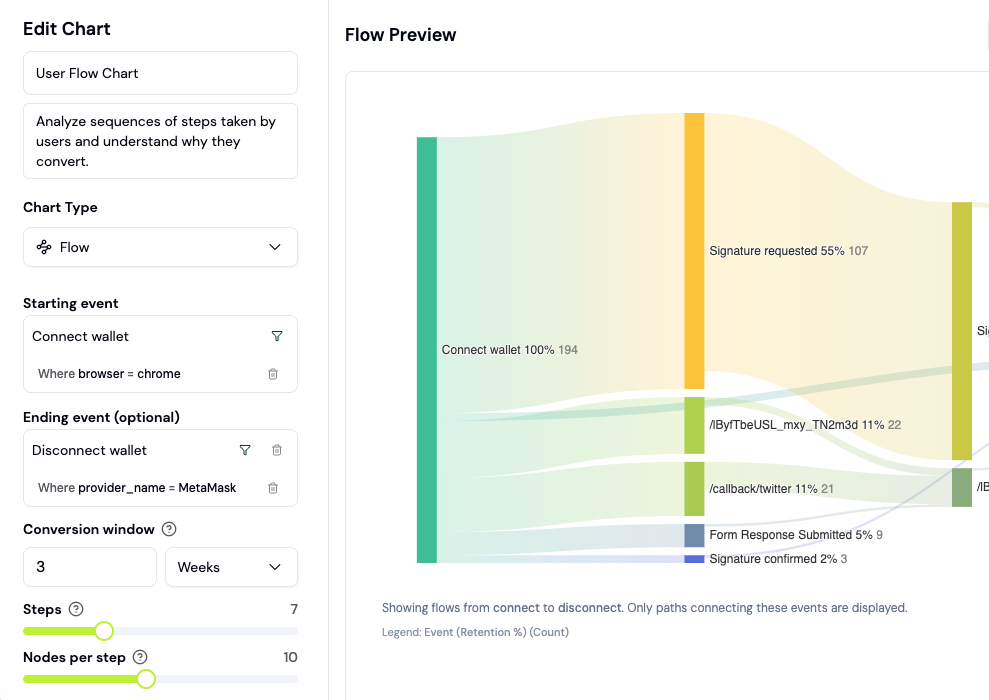 You can learn the following from paths:
* What did users do immediately after signing up?
* Where are users getting confused or stuck?
* Which parts of your app are people actually using?
* Why aren't users discovering new features?
* Where are new users landing on your website?
Understand how your users sequentially perform events in your product and analyze drop-offs or unsuccessful behavior.
***
## How to analyze user paths
User flows show you the actual paths users take through your app, not just the paths you designed. This guide walks you through creating and analyzing flow charts.
### What is a Sankey diagram?
A Sankey diagram visualizes user journeys as flowing paths. The width of each path represents the number of users taking that route. Wider paths = more common behavior.
Unlike funnels (which track a specific sequence), flows reveal **all paths** users take, including unexpected ones.
### Step 1: Create a Flow chart
Flows are a chart type you add to a dashboard (board), not a separate nav page.
1. Go to the [Formo Dashboard](https://app.formo.so)
2. Select your project
3. Open **Dashboards** in the left navigation, then open or create a board
4. Click **Add Chart** and choose the **Flow** chart type
### Step 2: Choose your starting point
Flows can start from any event. Select what you want to analyze:
| Starting point | What you'll learn |
| - | - |
| **First visit** | Where users go after landing |
| **Wallet connect** | What users do after connecting |
| **Specific page** | Paths from a key page |
| **Contract event** | Behavior after an onchain action |
| **Custom event** | Behavior after a conversion point |
### Step 3: Configure the flow
Flows are configured as a positional step list rather than a direction toggle. Each row's role is determined by its position:
* **Start**: The first row is your starting event (e.g., `connect`)
* **Anchor**: Middle rows are the events users pass through next
* **End**: The last row is where the flow ends
1. Add rows for each step you want to trace, in order
2. Set **Steps count** (2 to 5; default 3), the number of steps shown between each pair of anchor events
3. Set **Events per step** (2 to 100; default 20), the number of distinct events shown per step, most frequent first, before the rest are grouped into "Others" at the bottom of the column
4. Optionally set a **Conversion window** (value + unit), the time allowed for the next steps to happen after the starting event
5. Optionally add **Exclude events** to drop specific events from the path so transitions collapse around them
6. Click **Save Chart**
Flows always trace forward from the starting event; there is no backward-tracing option.
### Step 4: Read the flow chart
The Sankey diagram shows:
* **Nodes**: Events (pages, actions, conversions)
* **Paths**: User journeys between events
* **Width**: Number of users (wider = more common)
* **Drop-off**: Users who left the flow
### Step 5: Identify patterns
Look for these insights:
**Common paths:**
* Wide paths show your most frequent user journeys
* Do they match your intended UX flow?
**Unexpected paths:**
* Narrow paths to unexpected destinations
* Users skipping steps or taking detours
**Dead ends:**
* Where do users leave the flow?
* High drop-off at certain pages = friction points
### Example: Post-connect analysis
Analyze what users do after connecting their wallet:
\| Starting event | `connect` |
\| Steps | 4 |
**Typical findings:**
* 60% go to `/swap` (expected)
* 20% go to `/portfolio` (checking balances)
* 10% disconnect immediately (issue with UX?)
* 10% navigate to `/docs` (need help?)
### Example: Path to conversion
See what users do leading up to a conversion event by setting your conversion event as the last (End) step in the list, with earlier steps left open to discover common precursor actions:
\| Starting event | A page view or wallet event that typically precedes conversion |
\| End event | Your conversion event (e.g., `Swap`) |
\| Steps | 3 |
**Questions to answer:**
* What pages do converters visit first?
* Do they explore multiple features before converting?
* Is there a common path to conversion?
### Use flows with funnels
Flows and funnels complement each other:
| Tool | Best for |
| - | - |
| **Funnels** | Measuring specific conversion paths |
| **Flows** | Discovering all paths (expected and unexpected) |
**Workflow:**
1. Use Flows to discover common paths
2. Create Funnels to measure conversion on those paths
3. Use Flows again to investigate drop-off points
This documentation is built and hosted on [Mintlify](https://mintlify.com), a developer documentation platform.
You can learn the following from paths:
* What did users do immediately after signing up?
* Where are users getting confused or stuck?
* Which parts of your app are people actually using?
* Why aren't users discovering new features?
* Where are new users landing on your website?
Understand how your users sequentially perform events in your product and analyze drop-offs or unsuccessful behavior.
***
## How to analyze user paths
User flows show you the actual paths users take through your app, not just the paths you designed. This guide walks you through creating and analyzing flow charts.
### What is a Sankey diagram?
A Sankey diagram visualizes user journeys as flowing paths. The width of each path represents the number of users taking that route. Wider paths = more common behavior.
Unlike funnels (which track a specific sequence), flows reveal **all paths** users take, including unexpected ones.
### Step 1: Create a Flow chart
Flows are a chart type you add to a dashboard (board), not a separate nav page.
1. Go to the [Formo Dashboard](https://app.formo.so)
2. Select your project
3. Open **Dashboards** in the left navigation, then open or create a board
4. Click **Add Chart** and choose the **Flow** chart type
### Step 2: Choose your starting point
Flows can start from any event. Select what you want to analyze:
| Starting point | What you'll learn |
| - | - |
| **First visit** | Where users go after landing |
| **Wallet connect** | What users do after connecting |
| **Specific page** | Paths from a key page |
| **Contract event** | Behavior after an onchain action |
| **Custom event** | Behavior after a conversion point |
### Step 3: Configure the flow
Flows are configured as a positional step list rather than a direction toggle. Each row's role is determined by its position:
* **Start**: The first row is your starting event (e.g., `connect`)
* **Anchor**: Middle rows are the events users pass through next
* **End**: The last row is where the flow ends
1. Add rows for each step you want to trace, in order
2. Set **Steps count** (2 to 5; default 3), the number of steps shown between each pair of anchor events
3. Set **Events per step** (2 to 100; default 20), the number of distinct events shown per step, most frequent first, before the rest are grouped into "Others" at the bottom of the column
4. Optionally set a **Conversion window** (value + unit), the time allowed for the next steps to happen after the starting event
5. Optionally add **Exclude events** to drop specific events from the path so transitions collapse around them
6. Click **Save Chart**
Flows always trace forward from the starting event; there is no backward-tracing option.
### Step 4: Read the flow chart
The Sankey diagram shows:
* **Nodes**: Events (pages, actions, conversions)
* **Paths**: User journeys between events
* **Width**: Number of users (wider = more common)
* **Drop-off**: Users who left the flow
### Step 5: Identify patterns
Look for these insights:
**Common paths:**
* Wide paths show your most frequent user journeys
* Do they match your intended UX flow?
**Unexpected paths:**
* Narrow paths to unexpected destinations
* Users skipping steps or taking detours
**Dead ends:**
* Where do users leave the flow?
* High drop-off at certain pages = friction points
### Example: Post-connect analysis
Analyze what users do after connecting their wallet:
\| Starting event | `connect` |
\| Steps | 4 |
**Typical findings:**
* 60% go to `/swap` (expected)
* 20% go to `/portfolio` (checking balances)
* 10% disconnect immediately (issue with UX?)
* 10% navigate to `/docs` (need help?)
### Example: Path to conversion
See what users do leading up to a conversion event by setting your conversion event as the last (End) step in the list, with earlier steps left open to discover common precursor actions:
\| Starting event | A page view or wallet event that typically precedes conversion |
\| End event | Your conversion event (e.g., `Swap`) |
\| Steps | 3 |
**Questions to answer:**
* What pages do converters visit first?
* Do they explore multiple features before converting?
* Is there a common path to conversion?
### Use flows with funnels
Flows and funnels complement each other:
| Tool | Best for |
| - | - |
| **Funnels** | Measuring specific conversion paths |
| **Flows** | Discovering all paths (expected and unexpected) |
**Workflow:**
1. Use Flows to discover common paths
2. Create Funnels to measure conversion on those paths
3. Use Flows again to investigate drop-off points
This documentation is built and hosted on [Mintlify](https://mintlify.com), a developer documentation platform.