> ## Documentation Index
> Fetch the complete documentation index at: https://docs.formo.so/llms.txt
> Use this file to discover all available pages before exploring further.
# Live view
> Monitor real-time visitor activity on a live globe during launches and day-to-day operations.
 ## When to use Live View
Live View is great for:
* **Launch day monitoring** - Watch users discover your app in real time
* **Campaign monitoring** - See traffic spikes as campaigns go live
* **Demo dashboards** - Show real-time activity to stakeholders
* **Incident response** - Spot unusual patterns or errors quickly
## How to use Live View
### Step 1: Open Live View
1. Go to the [Formo Dashboard](https://app.formo.so)
2. Select your project
3. Click **Overview** in the left navigation
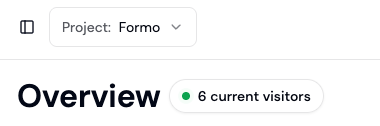
4. Click the pulsing live visitor count (e.g. "3 live visitors") next to the page title to open Live View. It only appears while at least one visitor is active on your site.
## When to use Live View
Live View is great for:
* **Launch day monitoring** - Watch users discover your app in real time
* **Campaign monitoring** - See traffic spikes as campaigns go live
* **Demo dashboards** - Show real-time activity to stakeholders
* **Incident response** - Spot unusual patterns or errors quickly
## How to use Live View
### Step 1: Open Live View
1. Go to the [Formo Dashboard](https://app.formo.so)
2. Select your project
3. Click **Overview** in the left navigation
4. Click the pulsing live visitor count (e.g. "3 live visitors") next to the page title to open Live View. It only appears while at least one visitor is active on your site.
 ### Step 2: Monitor activity
Events stream in real time on an interactive globe:
* **Avatars** on the globe mark where active visitors are, grouped by country when several visitors share a location
* The **live feed** panel (bottom left) lists recent events as they happen
* Click on any user or activity in the live feed to see where they are on the map. Click again to open their [wallet profile](/features/wallet-intelligence/wallet-profiles)
### Step 3: Use for presentations
1. Open Live View in a browser tab
2. Expand to fullscreen mode
3. Display on a team monitor or during demos
This documentation is built and hosted on [Mintlify](https://mintlify.com), a developer documentation platform.
### Step 2: Monitor activity
Events stream in real time on an interactive globe:
* **Avatars** on the globe mark where active visitors are, grouped by country when several visitors share a location
* The **live feed** panel (bottom left) lists recent events as they happen
* Click on any user or activity in the live feed to see where they are on the map. Click again to open their [wallet profile](/features/wallet-intelligence/wallet-profiles)
### Step 3: Use for presentations
1. Open Live View in a browser tab
2. Expand to fullscreen mode
3. Display on a team monitor or during demos
This documentation is built and hosted on [Mintlify](https://mintlify.com), a developer documentation platform.