> ## Documentation Index
> Fetch the complete documentation index at: https://docs.formo.so/llms.txt
> Use this file to discover all available pages before exploring further.
# How to Build a Custom Dashboard
> Create a custom dashboard with charts for users, transactions, revenue, retention, and acquisition channels using Formo's dashboard builder.
A dashboard brings your key metrics (user growth, transaction volume, revenue, and acquisition channels) into one place. This guide walks through building one from scratch.
## Part 1: Create Your Custom Board
Navigate to **Dashboards** in the sidebar. Click **Add board**.
Name your board (e.g., "Growth Metrics" or "Protocol Health"). This is your custom dashboard page where all charts will live.
## Part 2: Add a Chart
Click **Add Chart** on your board. In the chart builder:
1. Select **Line** chart type (or Bar for comparison)
2. Write a SQL query for your metric (e.g., daily unique wallets, transaction count) or load an example.
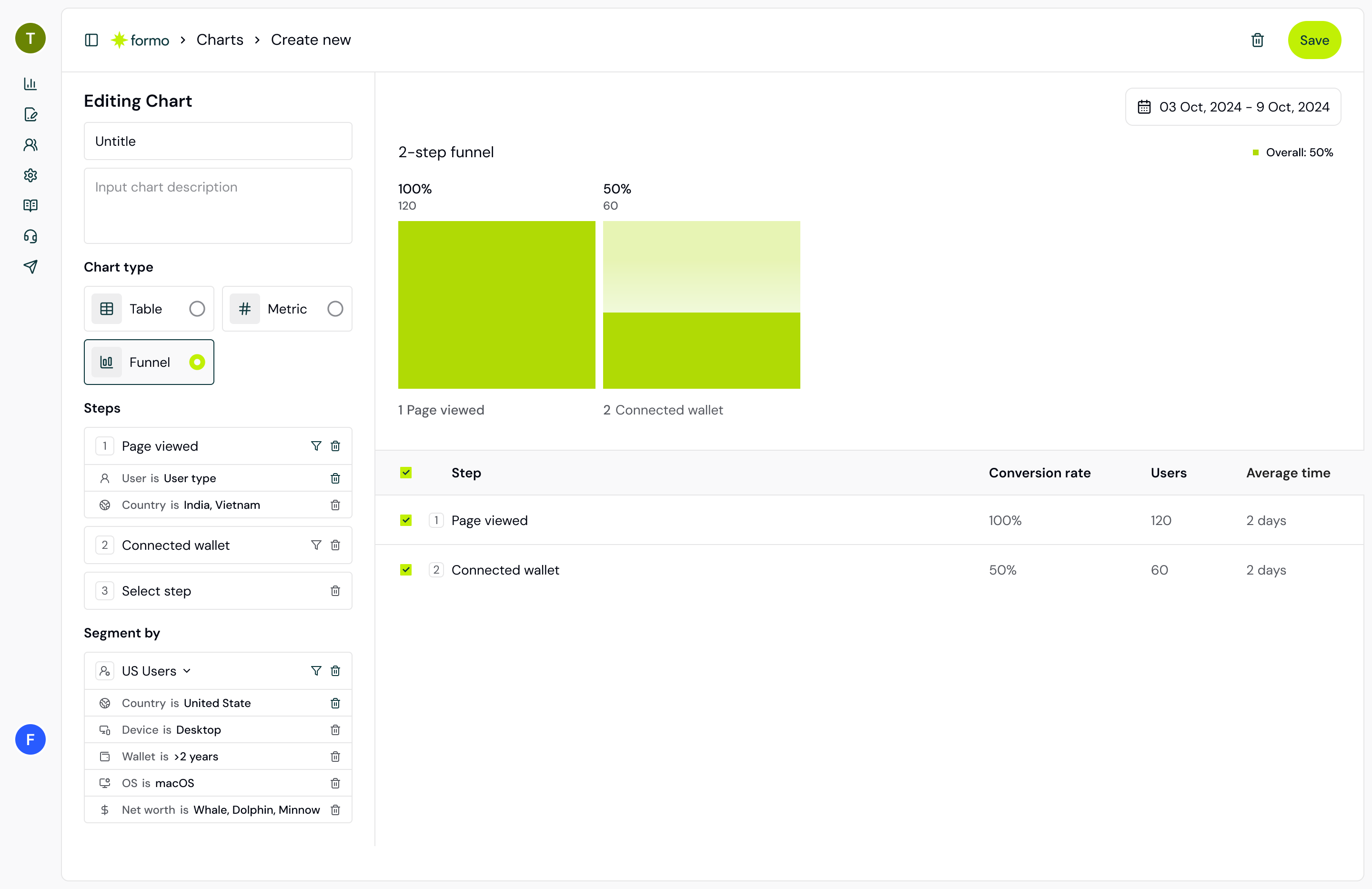
## Part 3: Add Funnel Chart
Create a new chart:
1. Select **Funnel** chart type
2. Define your funnel steps:
* Step 1: Page view (using the `page` event type)
* Step 2: Connect wallet (using the `connect` event type)
* Step 3: First Transaction
* Step 4: Repeat Transaction (optional)
3. Set your time range (30 days)
This chart shows the conversion rate at each step and where users drop off.
 ## Part 4: Add Retention Chart
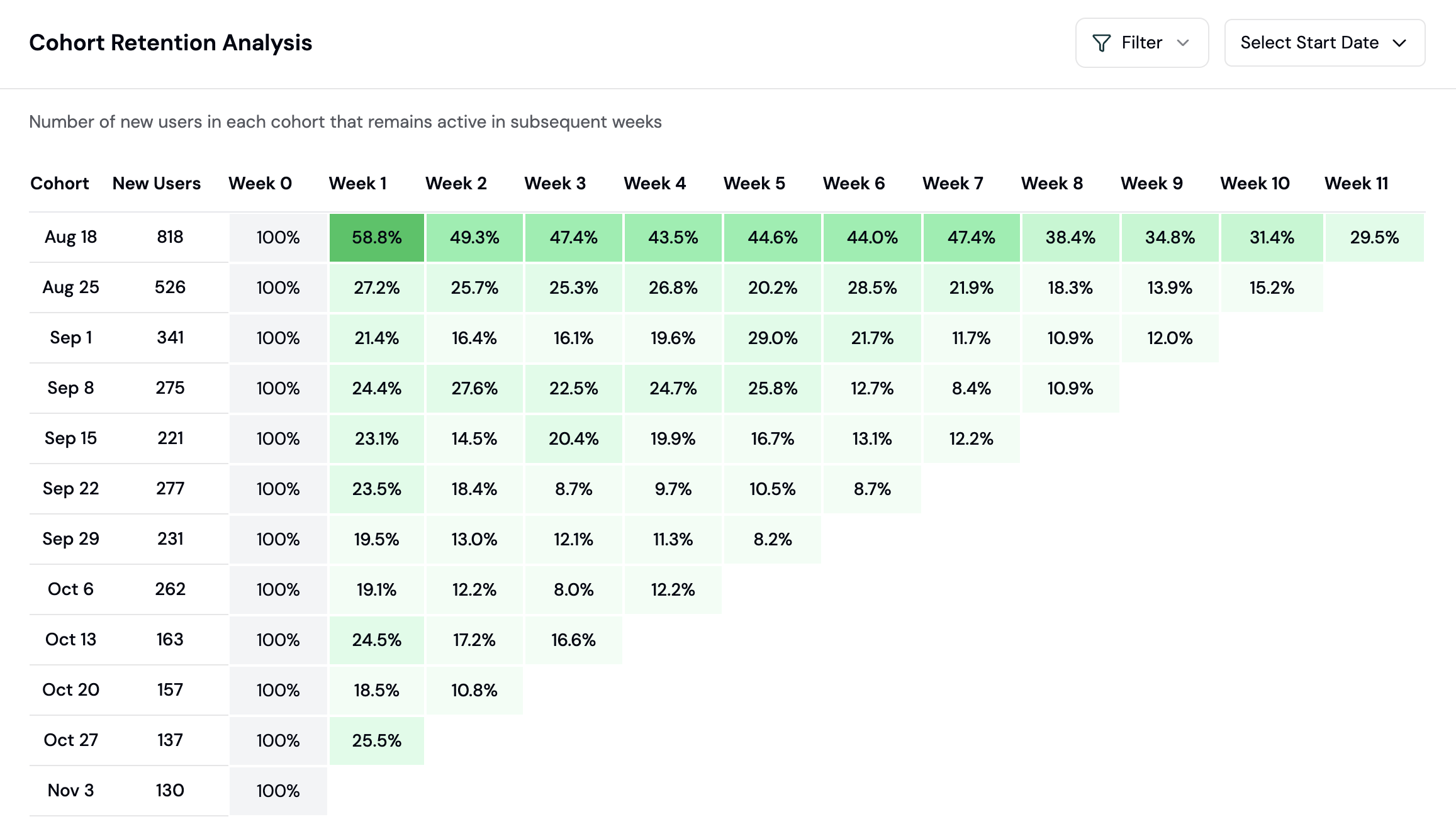
Create another chart:
1. Select **Retention** chart type
2. Choose the retention event (e.g., wallet connect)
3. Optionally add user filters to segment cohorts
This chart shows whether users return after their first transaction.
## Part 4: Add Retention Chart
Create another chart:
1. Select **Retention** chart type
2. Choose the retention event (e.g., wallet connect)
3. Optionally add user filters to segment cohorts
This chart shows whether users return after their first transaction.
 ## Part 5: Add Flow Chart (Sankey)
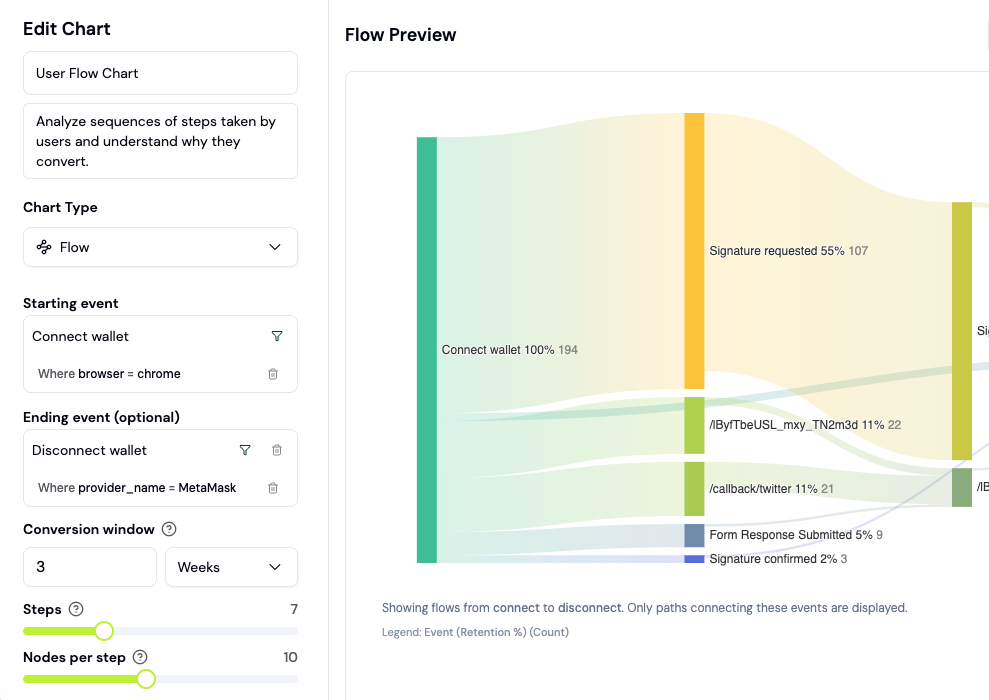
Create another chart:
1. Select **Flow** chart type (Sankey diagram)
2. Configure: Page (or custom event) flows
3. Limit to the top 5 to 10 paths for clarity
This shows the most common paths users take through your app, and which ones lead to transactions.
## Part 5: Add Flow Chart (Sankey)
Create another chart:
1. Select **Flow** chart type (Sankey diagram)
2. Configure: Page (or custom event) flows
3. Limit to the top 5 to 10 paths for clarity
This shows the most common paths users take through your app, and which ones lead to transactions.
 ## Part 6: Add Custom SQL Chart
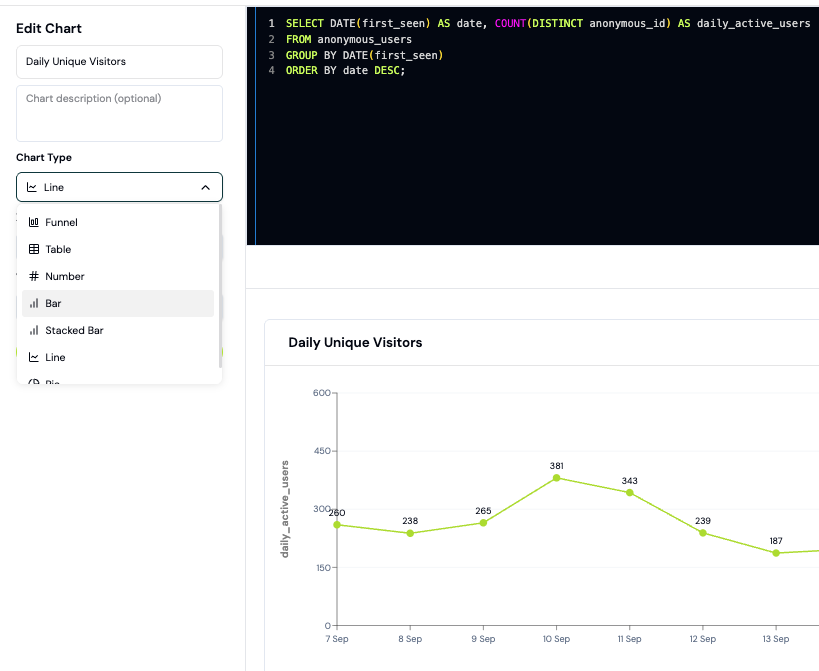
For advanced metrics (daily revenue, top wallets, gas spent), use a custom SQL chart:
1. Click **Add Chart** and write a SQL query
2. Open the [Explorer](/guides/sql-explorer) to build and test your query first
3. Paste your tested SQL into the chart builder
4. Select your chart visualization (Line, Bar, Pie)
Example: Daily revenue by tracking transaction values from contract events.
## Part 6: Add Custom SQL Chart
For advanced metrics (daily revenue, top wallets, gas spent), use a custom SQL chart:
1. Click **Add Chart** and write a SQL query
2. Open the [Explorer](/guides/sql-explorer) to build and test your query first
3. Paste your tested SQL into the chart builder
4. Select your chart visualization (Line, Bar, Pie)
Example: Daily revenue by tracking transaction values from contract events.
 ## Part 7: Share Your Dashboard
Click **Share** in the top right to generate a public link. Copy it and share with stakeholders; the shared view refreshes automatically every few minutes.
## Recommended Custom Charts
| Chart | Metric | What it shows |
| - | - | - |
| **Key Metrics Line Chart** | DAU, Transactions | Growth over time |
| **Funnel Chart** | Page view > Connect > Transaction | Where users drop off |
| **Retention Chart** | D7, D30 cohort retention | Whether users come back |
| **Traffic Sources** | Referrer breakdown | Which acquisition channels convert best |
| **Flow (Sankey)** | Common flows | How users navigate your app |
## FAQ
A Chart is a single visualization (line, bar, funnel, etc.). A Board is a collection of charts arranged on one dashboard page. You can create multiple boards for different purposes (Protocol Health, Marketing Performance, Wallet Intelligence, etc.).
You can view data for as long as your project has been collecting it (usually from your first SDK install). Most protocols have 3-12 months of data. Older data can be queried via the Explorer.
This documentation is built and hosted on [Mintlify](https://mintlify.com), a developer documentation platform.
## Part 7: Share Your Dashboard
Click **Share** in the top right to generate a public link. Copy it and share with stakeholders; the shared view refreshes automatically every few minutes.
## Recommended Custom Charts
| Chart | Metric | What it shows |
| - | - | - |
| **Key Metrics Line Chart** | DAU, Transactions | Growth over time |
| **Funnel Chart** | Page view > Connect > Transaction | Where users drop off |
| **Retention Chart** | D7, D30 cohort retention | Whether users come back |
| **Traffic Sources** | Referrer breakdown | Which acquisition channels convert best |
| **Flow (Sankey)** | Common flows | How users navigate your app |
## FAQ
A Chart is a single visualization (line, bar, funnel, etc.). A Board is a collection of charts arranged on one dashboard page. You can create multiple boards for different purposes (Protocol Health, Marketing Performance, Wallet Intelligence, etc.).
You can view data for as long as your project has been collecting it (usually from your first SDK install). Most protocols have 3-12 months of data. Older data can be queried via the Explorer.
This documentation is built and hosted on [Mintlify](https://mintlify.com), a developer documentation platform.