> ## Documentation Index
> Fetch the complete documentation index at: https://docs.formo.so/llms.txt
> Use this file to discover all available pages before exploring further.
# How to Build Conversion Funnels
> Build multi-step conversion funnels to track user journeys from first page view to wallet connect to onchain transaction, and identify where users drop off.
Funnels show where users drop off. Conversion Insights show why.
## Part 1: Navigate to the Chart Builder
Click **Dashboards** in the sidebar, then click **Add Chart**.
In the chart type selector, choose **Funnel**.
Name your funnel (e.g., "Landing to First Swap") and click **Create**.
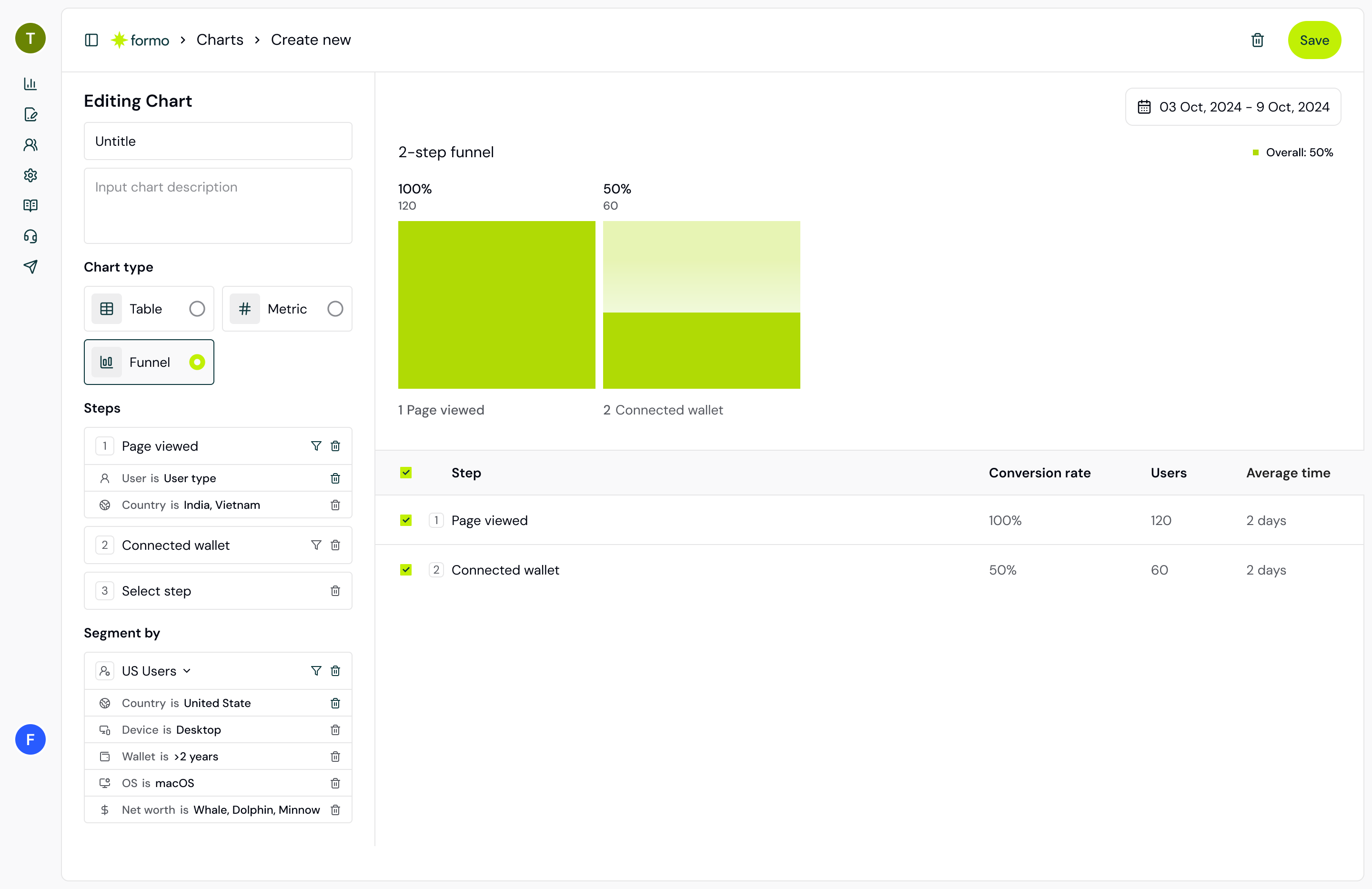
The funnel builder opens with a blank canvas. You'll see the chart editor on the right and a preview pane on the left.
## Part 2: Define Your Funnel Steps
Funnels require at least 2 steps. Each step is an event that users must complete in sequence. Let's build a classic conversion funnel:
**Step 1: Page View**
Click the **+ Add Step** button.
Select **page** from the event dropdown. This captures every user who lands on your app.
(Optional) Add a filter: Path = "/swap" to track only users who visit your swap page.
**Step 2: Wallet Connect**
Click **+ Add Step** again.
Select **connect** from the events list.
(Optional) Add a filter to track only specific chains: chain\_id = 1 (Ethereum mainnet).
**Step 3: Transaction**
Click **+ Add Step** once more.
Select **transaction** from the events list. This counts users who completed an onchain transaction.
(Optional) Add a filter: to = "0x..." to track swaps on your DEX only.
 **Too many steps?** Start with 3-4 key steps. Long funnels (6+ steps) can hide important patterns because conversion drops exponentially. Create separate funnels for different user paths (e.g., one for swaps, one for pools).
## Part 3: Set Your Conversion Window
The conversion window defines how much time a user has to complete the next step. For example, if Step 1 is "page" and Step 2 is "connect", a 1-day window means we count the user toward Step 2 only if they connect a wallet within 24 hours of landing.
Scroll to **Conversion Window** in the settings panel.
Enter a number and choose a unit (Hours, Days, or Weeks). The default window is 2 days, but you can tune it to your funnel:
* Short windows (hours): Fast decisions (DEX swaps, quick stakes)
* A few days: Deliberate decisions (pool deposits, farm selections)
* Weeks: Long consideration cycles (lending protocols, governance)
## Part 4: Choose Step Order
Formo supports two step order modes:
**Sequential**
Each step must follow the previous step. User must view a page, then connect, then swap. Most common.
**Any order**
Each step is independent. User can swap without connecting first (e.g., batch transactions, programmatic access). Choose this if your funnel steps can happen in any order.
Click the **Step order** dropdown (default: Sequential).
Select **Any order** only if your user journey allows non-sequential steps.
## Part 5: Analyze the Results
Once your funnel is configured, the preview pane shows your funneling data in real time:
* **Absolute numbers**: Count of users at each step
* **Conversion rate**: Percentage of users who advance
* **Drop-off**: Users who left at each step
* **Visual width**: Bar width represents conversion percentage
Look for bottlenecks. If 80 percent of users land on a page but only 20 percent connect a wallet, your wallet connection is the biggest leak.
## Part 6: Add Breakdown Dimensions
Break down your funnel by user attributes to find patterns:
In the settings panel, scroll to **Breakdowns**.
Select a dimension:
* **Referrer**: Which traffic source converts best?
* **Country**: Geographic patterns?
* **Device**: Mobile vs desktop conversion?
* **UTM Source**: Which campaign drives best users?
The funnel splits into multiple bands, one per breakdown value. Compare conversion rates across each.
If your iOS users convert at 5 percent but web at 25 percent, that points to a mobile UX problem. If users from Twitter convert at 40 percent but Discord at 15 percent, that points to your acquisition mix.
## Part 7: Use Conversion Insights
Formo analyzes your funnel data to find what drives conversions. Go to the [Insights](/features/product-analytics/insights) page to see:
* **Lift**: Which attributes increase conversion probability
* **Odds ratio**: How much more (or less) likely users with this attribute convert
* **Penetration**: How common this attribute is among your users
Example insight: "Users from Referrer=twitter have 2.3x lift in Step 2 conversion (wallet connect), with an odds ratio of 3.1."
If wallet conversion is your bottleneck, this points to prioritizing Twitter traffic.
## Part 8: Save Your Funnel to a Dashboard
Click **Save to Dashboard** in the top right.
Select an existing dashboard or create a new one (e.g., "Conversion Analytics").
Add a title for the chart (e.g., "Swap Conversion Funnel") and click **Save**.
Your funnel is now saved and will update daily with new data. Return to your dashboard anytime to track trends.
## Real-World Example: DEX Swap Funnel
Here's how to set up a high-quality funnel for a DEX:
| Step | Event | Filter | Meaning |
| - | - | - | - |
| 1 | page | path = "/swap" | Users who visit the swap page |
| 2 | connect | chain in (ethereum, polygon, arbitrum) | Users who connect a supported wallet |
| 3 | transaction | contract\_address = "0xE592427A0AEce92De3Edee1F18E0157C05861564" | Users who execute a swap |
Set conversion window to **1 day** (most swaps happen quickly). Add breakdowns for **referrer** and **device** to see which sources and platforms convert best. Check **Insights** regularly to catch new patterns.
## Best Practices
* **Segment your funnels**: Don't mix swap and pool deposit users in one funnel. Create separate funnels for each user path.
* **Monitor daily**: Check your funnel once a week. Look for drops (potential bugs) or spikes (successful campaigns).
* **Pair with retention**: A high-conversion funnel is great, but if users don't return, you're not growing. Use [Retention tracking](/guides/retention) to measure long-term value.
* **Use Ask AI**: Click **Ask AI** (the AI assistant) and ask "Why did my wallet connection rate drop 10% this week?" Formo will analyze your data.
* **Contract events**: If you track [Contract Events](/guides/contract-events), you can create funnels for specific contract interactions (e.g., "approved" to "swap" to "received").
## DeFi-Specific Funnel Recipes
### Staking Funnel
Track staking adoption with this canonical four-step funnel:
| Step | Event | Filter |
| - | - | - |
| 1 | page | path = "/stake" |
| 2 | connect | chain = "ethereum" |
| 3 | approval | contract\_address = "0x..." |
| 4 | stake | function\_name = "stake" |
High drop-off at Step 2 (wallet connect) indicates UX friction; at Step 3 (approval) suggests confusing token permissions.
### Liquidity Provision Funnel
Liquidity provision funnels are longer because users must approve two tokens, then add liquidity:
| Step | Event | Filter |
| - | - | - |
| 1 | page | path = "/pool" |
| 2 | connect | - |
| 3 | approval\_1 | function\_name = "approve", token = "tokenA" |
| 4 | approval\_2 | function\_name = "approve", token = "tokenB" |
| 5 | addLiquidity | function\_name = "addLiquidity" |
Two approval steps cause most drop-off.
### Multi-Step DeFi Flow: Deposit to Borrow
Track the full lending funnel (Deposit > Borrow > Repay):
| Step | Event | Filter |
| - | - | - |
| 1 | deposit | function\_name = "supply" |
| 2 | borrow | function\_name = "borrow" |
| 3 | swap | (optional) use borrowed assets |
| 4 | repay | function\_name = "repay" |
Use **Any order** step order here (borrow and swap may happen out of order).
### Key DeFi Drop-Off Patterns
Common friction points and solutions:
| Drop-Off Point | Common Cause | Fix |
| - | - | - |
| Wallet Connect (Step 2) | No visible button; multi-chain confusion | Add prominent connect button; default to user's last-used chain |
| Token Approval (Step 3) | Unclear why approval needed | Add UX explainer ("We need permission to transfer your tokens") |
| Transaction Submit | High gas fees; browser extension timeout | Show gas estimate upfront; increase approval window |
### Whale Swap Alert Setup
Monitor high-value swaps on your DEX:
1. Create a funnel with step: **transaction** + filter **amount\_usd > 100000**
2. Add breakdown by **address** to spot repeat whale traders
3. Set an [alert](/features/product-analytics/alerts) to get notified when whale wallets transact
4. Use **Insights** to find attributes of whale traders and target similar users
### Failed Transaction Alert
Track when transactions fail to identify UX issues that cause drop-off:
1. Go to **Project Settings** > **Alerts**
2. Click **Create Alert**
3. Configure: Trigger type = Events, Condition = `type = transaction`
4. Set a destination to a webhook or Slack
5. Filter the delivered events for `properties.status = "failed"` on your receiver (status isn't a filterable alert condition), and investigate spikes, which often correlate with funnel drop-off at the transaction step
## FAQ
Yes. If you've set up [Contract Events](/guides/contract-events), you can select any of them in the funnel builder. For example, a Uniswap funnel might be: "page" > "swap (contract event)" > "Transfer (contract event)".
**Sequential**: User must complete steps in order. Page view, then wallet connect, then swap.
**Any order**: Steps are independent. User can swap without a page view event (e.g., direct contract calls, wallet batch operations). Use any-order step order when your steps can happen in any sequence.
Enter a number and pick a unit (Hours, Days, or Weeks):
* **Swap, stake, claim**: hours (fast decisions)
* **Pool deposits, farming**: a few days (deliberate)
* **Loans, governance**: weeks (long consideration)
Start with the default of 2 days and adjust based on your product.
See the [Funnel Analytics documentation](/features/product-analytics/funnels) for full detail, or email [support@formo.so](mailto:support@formo.so) with questions.
This documentation is built and hosted on [Mintlify](https://mintlify.com), a developer documentation platform.
**Too many steps?** Start with 3-4 key steps. Long funnels (6+ steps) can hide important patterns because conversion drops exponentially. Create separate funnels for different user paths (e.g., one for swaps, one for pools).
## Part 3: Set Your Conversion Window
The conversion window defines how much time a user has to complete the next step. For example, if Step 1 is "page" and Step 2 is "connect", a 1-day window means we count the user toward Step 2 only if they connect a wallet within 24 hours of landing.
Scroll to **Conversion Window** in the settings panel.
Enter a number and choose a unit (Hours, Days, or Weeks). The default window is 2 days, but you can tune it to your funnel:
* Short windows (hours): Fast decisions (DEX swaps, quick stakes)
* A few days: Deliberate decisions (pool deposits, farm selections)
* Weeks: Long consideration cycles (lending protocols, governance)
## Part 4: Choose Step Order
Formo supports two step order modes:
**Sequential**
Each step must follow the previous step. User must view a page, then connect, then swap. Most common.
**Any order**
Each step is independent. User can swap without connecting first (e.g., batch transactions, programmatic access). Choose this if your funnel steps can happen in any order.
Click the **Step order** dropdown (default: Sequential).
Select **Any order** only if your user journey allows non-sequential steps.
## Part 5: Analyze the Results
Once your funnel is configured, the preview pane shows your funneling data in real time:
* **Absolute numbers**: Count of users at each step
* **Conversion rate**: Percentage of users who advance
* **Drop-off**: Users who left at each step
* **Visual width**: Bar width represents conversion percentage
Look for bottlenecks. If 80 percent of users land on a page but only 20 percent connect a wallet, your wallet connection is the biggest leak.
## Part 6: Add Breakdown Dimensions
Break down your funnel by user attributes to find patterns:
In the settings panel, scroll to **Breakdowns**.
Select a dimension:
* **Referrer**: Which traffic source converts best?
* **Country**: Geographic patterns?
* **Device**: Mobile vs desktop conversion?
* **UTM Source**: Which campaign drives best users?
The funnel splits into multiple bands, one per breakdown value. Compare conversion rates across each.
If your iOS users convert at 5 percent but web at 25 percent, that points to a mobile UX problem. If users from Twitter convert at 40 percent but Discord at 15 percent, that points to your acquisition mix.
## Part 7: Use Conversion Insights
Formo analyzes your funnel data to find what drives conversions. Go to the [Insights](/features/product-analytics/insights) page to see:
* **Lift**: Which attributes increase conversion probability
* **Odds ratio**: How much more (or less) likely users with this attribute convert
* **Penetration**: How common this attribute is among your users
Example insight: "Users from Referrer=twitter have 2.3x lift in Step 2 conversion (wallet connect), with an odds ratio of 3.1."
If wallet conversion is your bottleneck, this points to prioritizing Twitter traffic.
## Part 8: Save Your Funnel to a Dashboard
Click **Save to Dashboard** in the top right.
Select an existing dashboard or create a new one (e.g., "Conversion Analytics").
Add a title for the chart (e.g., "Swap Conversion Funnel") and click **Save**.
Your funnel is now saved and will update daily with new data. Return to your dashboard anytime to track trends.
## Real-World Example: DEX Swap Funnel
Here's how to set up a high-quality funnel for a DEX:
| Step | Event | Filter | Meaning |
| - | - | - | - |
| 1 | page | path = "/swap" | Users who visit the swap page |
| 2 | connect | chain in (ethereum, polygon, arbitrum) | Users who connect a supported wallet |
| 3 | transaction | contract\_address = "0xE592427A0AEce92De3Edee1F18E0157C05861564" | Users who execute a swap |
Set conversion window to **1 day** (most swaps happen quickly). Add breakdowns for **referrer** and **device** to see which sources and platforms convert best. Check **Insights** regularly to catch new patterns.
## Best Practices
* **Segment your funnels**: Don't mix swap and pool deposit users in one funnel. Create separate funnels for each user path.
* **Monitor daily**: Check your funnel once a week. Look for drops (potential bugs) or spikes (successful campaigns).
* **Pair with retention**: A high-conversion funnel is great, but if users don't return, you're not growing. Use [Retention tracking](/guides/retention) to measure long-term value.
* **Use Ask AI**: Click **Ask AI** (the AI assistant) and ask "Why did my wallet connection rate drop 10% this week?" Formo will analyze your data.
* **Contract events**: If you track [Contract Events](/guides/contract-events), you can create funnels for specific contract interactions (e.g., "approved" to "swap" to "received").
## DeFi-Specific Funnel Recipes
### Staking Funnel
Track staking adoption with this canonical four-step funnel:
| Step | Event | Filter |
| - | - | - |
| 1 | page | path = "/stake" |
| 2 | connect | chain = "ethereum" |
| 3 | approval | contract\_address = "0x..." |
| 4 | stake | function\_name = "stake" |
High drop-off at Step 2 (wallet connect) indicates UX friction; at Step 3 (approval) suggests confusing token permissions.
### Liquidity Provision Funnel
Liquidity provision funnels are longer because users must approve two tokens, then add liquidity:
| Step | Event | Filter |
| - | - | - |
| 1 | page | path = "/pool" |
| 2 | connect | - |
| 3 | approval\_1 | function\_name = "approve", token = "tokenA" |
| 4 | approval\_2 | function\_name = "approve", token = "tokenB" |
| 5 | addLiquidity | function\_name = "addLiquidity" |
Two approval steps cause most drop-off.
### Multi-Step DeFi Flow: Deposit to Borrow
Track the full lending funnel (Deposit > Borrow > Repay):
| Step | Event | Filter |
| - | - | - |
| 1 | deposit | function\_name = "supply" |
| 2 | borrow | function\_name = "borrow" |
| 3 | swap | (optional) use borrowed assets |
| 4 | repay | function\_name = "repay" |
Use **Any order** step order here (borrow and swap may happen out of order).
### Key DeFi Drop-Off Patterns
Common friction points and solutions:
| Drop-Off Point | Common Cause | Fix |
| - | - | - |
| Wallet Connect (Step 2) | No visible button; multi-chain confusion | Add prominent connect button; default to user's last-used chain |
| Token Approval (Step 3) | Unclear why approval needed | Add UX explainer ("We need permission to transfer your tokens") |
| Transaction Submit | High gas fees; browser extension timeout | Show gas estimate upfront; increase approval window |
### Whale Swap Alert Setup
Monitor high-value swaps on your DEX:
1. Create a funnel with step: **transaction** + filter **amount\_usd > 100000**
2. Add breakdown by **address** to spot repeat whale traders
3. Set an [alert](/features/product-analytics/alerts) to get notified when whale wallets transact
4. Use **Insights** to find attributes of whale traders and target similar users
### Failed Transaction Alert
Track when transactions fail to identify UX issues that cause drop-off:
1. Go to **Project Settings** > **Alerts**
2. Click **Create Alert**
3. Configure: Trigger type = Events, Condition = `type = transaction`
4. Set a destination to a webhook or Slack
5. Filter the delivered events for `properties.status = "failed"` on your receiver (status isn't a filterable alert condition), and investigate spikes, which often correlate with funnel drop-off at the transaction step
## FAQ
Yes. If you've set up [Contract Events](/guides/contract-events), you can select any of them in the funnel builder. For example, a Uniswap funnel might be: "page" > "swap (contract event)" > "Transfer (contract event)".
**Sequential**: User must complete steps in order. Page view, then wallet connect, then swap.
**Any order**: Steps are independent. User can swap without a page view event (e.g., direct contract calls, wallet batch operations). Use any-order step order when your steps can happen in any sequence.
Enter a number and pick a unit (Hours, Days, or Weeks):
* **Swap, stake, claim**: hours (fast decisions)
* **Pool deposits, farming**: a few days (deliberate)
* **Loans, governance**: weeks (long consideration)
Start with the default of 2 days and adjust based on your product.
See the [Funnel Analytics documentation](/features/product-analytics/funnels) for full detail, or email [support@formo.so](mailto:support@formo.so) with questions.
This documentation is built and hosted on [Mintlify](https://mintlify.com), a developer documentation platform.