> ## Documentation Index
> Fetch the complete documentation index at: https://docs.formo.so/llms.txt
> Use this file to discover all available pages before exploring further.
# MCP OAuth
> Connect OAuth-capable MCP clients to Formo.
## Overview
Formo supports OAuth for remote MCP clients that can discover and complete an OAuth authorization flow.
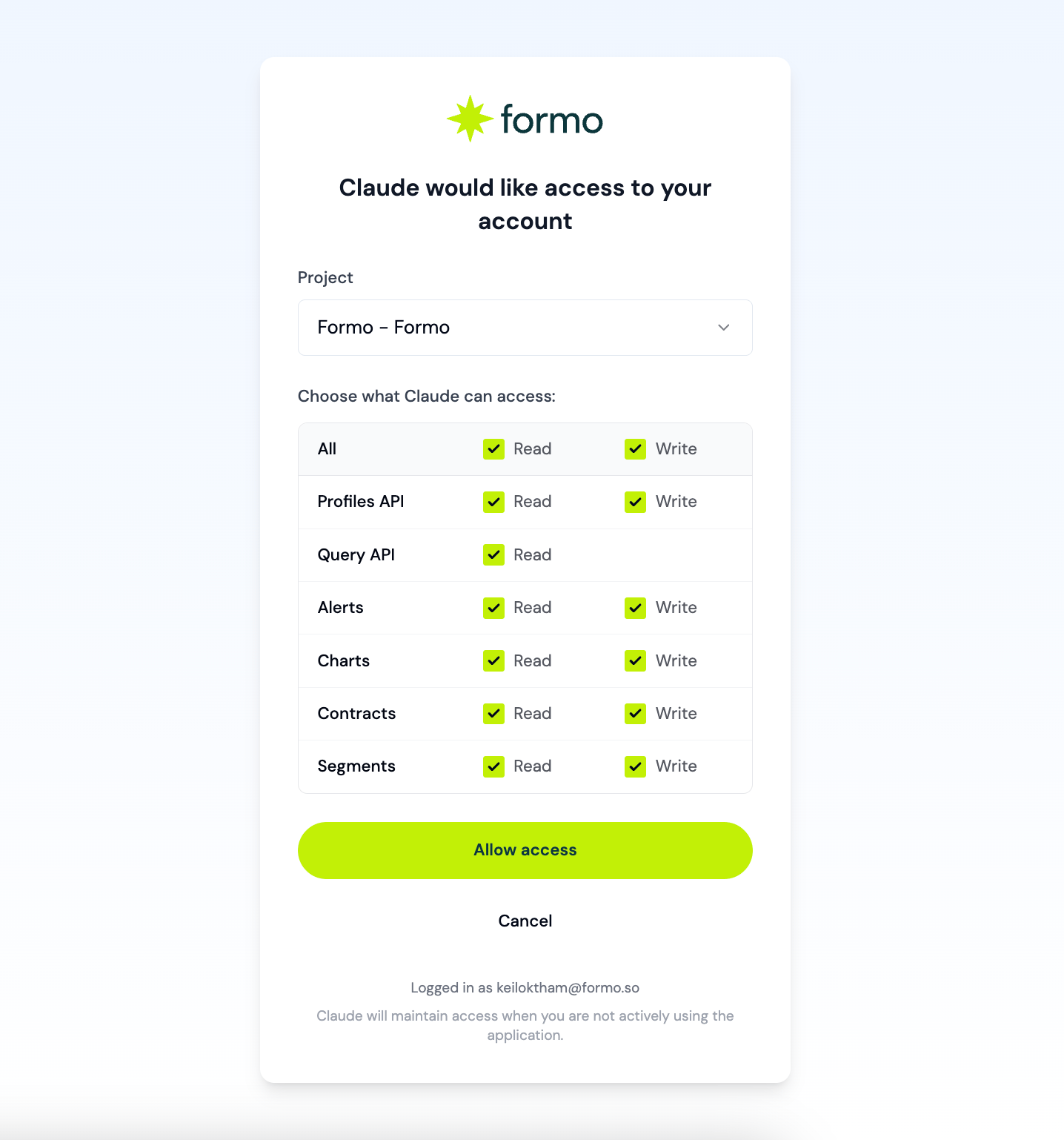 ## Setup
1. Open ChatGPT settings
2. Go to **Apps**
3. Click **Advanced settings**
4. Enable **Developer mode**
## Setup
1. Open ChatGPT settings
2. Go to **Apps**
3. Click **Advanced settings**
4. Enable **Developer mode**
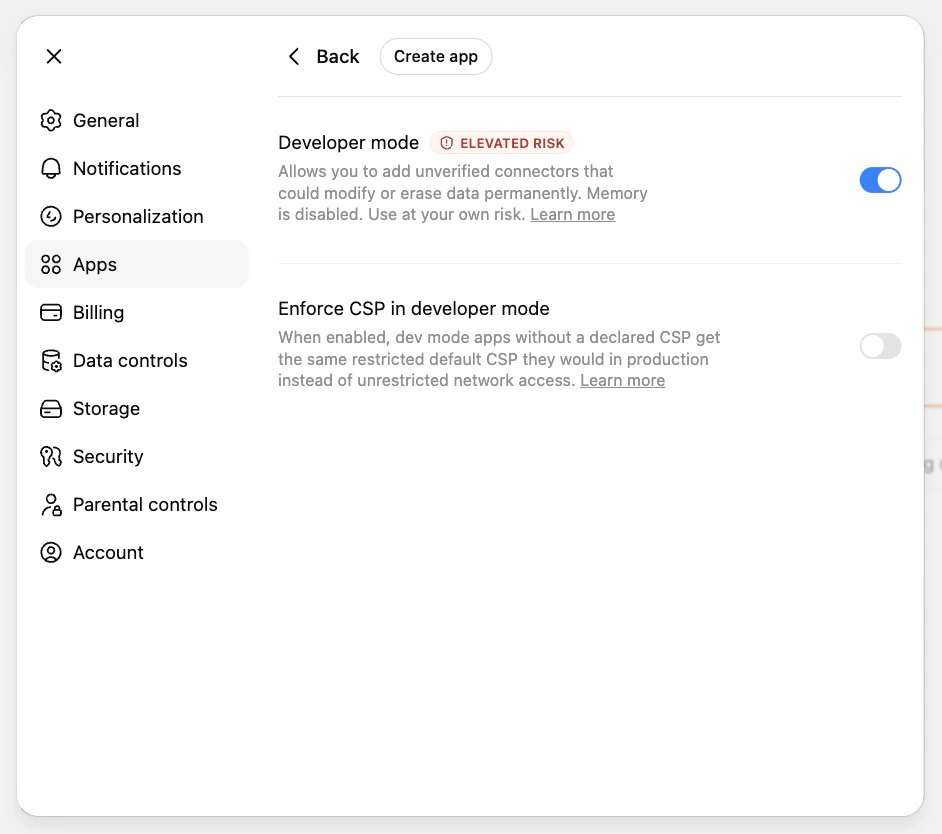 5. Go back to Apps
6. Click **Create app**
7. Enter the app details:
**Name**
```text theme={null}
Formo
```
**MCP server URL**
```text theme={null}
https://api.formo.so/v0/mcp/
```
* **Description:** optional
* **Authentication:** OAuth
5. Go back to Apps
6. Click **Create app**
7. Enter the app details:
**Name**
```text theme={null}
Formo
```
**MCP server URL**
```text theme={null}
https://api.formo.so/v0/mcp/
```
* **Description:** optional
* **Authentication:** OAuth
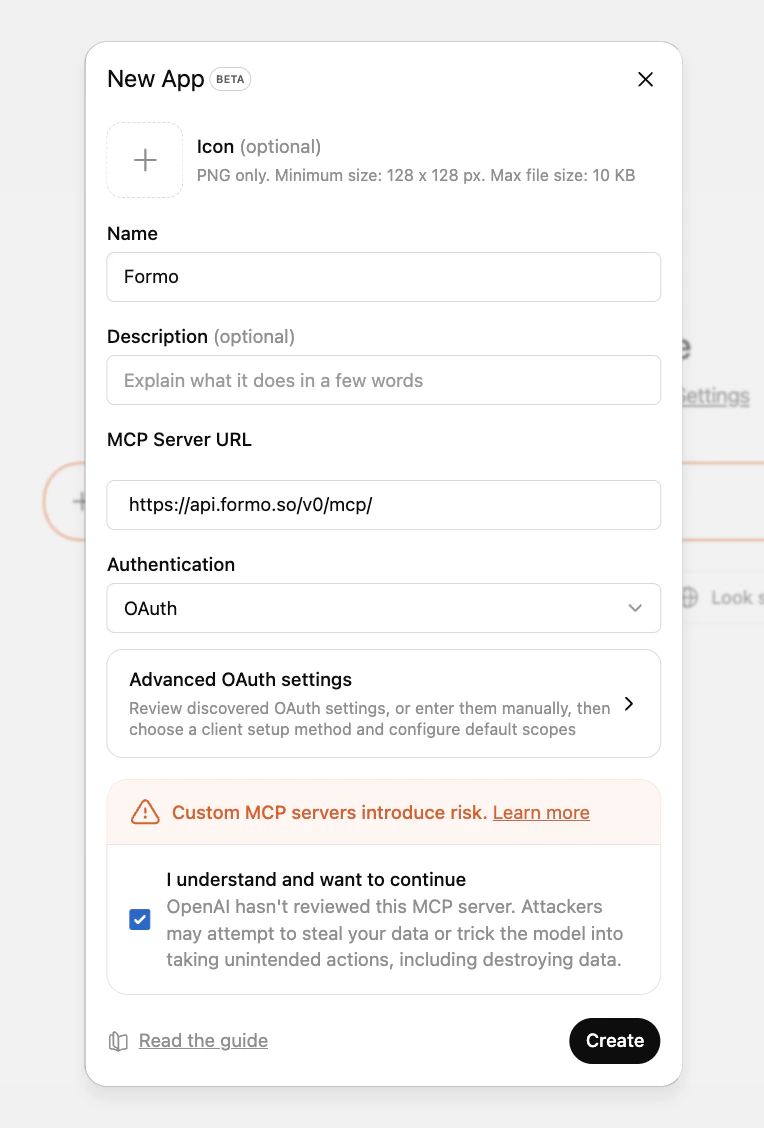 8. Click **Create**
9. Sign in to Formo, select a project, and approve access
10. Start asking ChatGPT questions about your Formo analytics
ChatGPT Developer mode is a beta feature. ChatGPT apps created in Developer mode also cannot use memory.
Formo can be configured as a data-only MCP app; no extra app UI is required to query analytics.
1. Open **Customize** → **Connectors**
2. Add a custom connector
3. Enter the connector details:
**Name**
```text theme={null}
Formo
```
**Server URL**
```text theme={null}
https://api.formo.so/v0/mcp/
```
8. Click **Create**
9. Sign in to Formo, select a project, and approve access
10. Start asking ChatGPT questions about your Formo analytics
ChatGPT Developer mode is a beta feature. ChatGPT apps created in Developer mode also cannot use memory.
Formo can be configured as a data-only MCP app; no extra app UI is required to query analytics.
1. Open **Customize** → **Connectors**
2. Add a custom connector
3. Enter the connector details:
**Name**
```text theme={null}
Formo
```
**Server URL**
```text theme={null}
https://api.formo.so/v0/mcp/
```
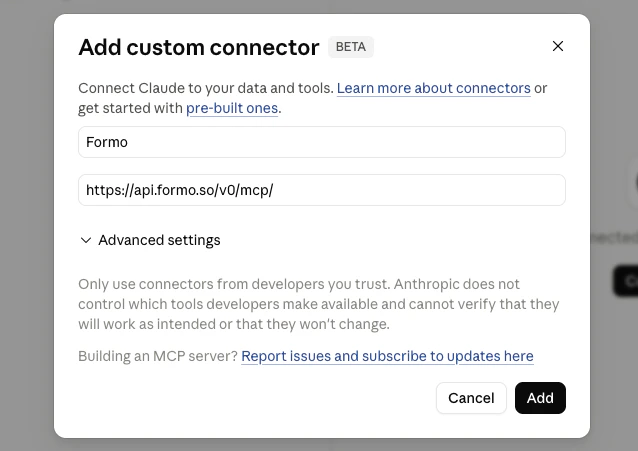 4. Click **Add**
5. On the Formo confirmation page, select the project Claude.ai should access
6. Click **Allow access**
7. Return to Claude.ai and confirm Formo appears with the available tools
4. Click **Add**
5. On the Formo confirmation page, select the project Claude.ai should access
6. Click **Allow access**
7. Return to Claude.ai and confirm Formo appears with the available tools
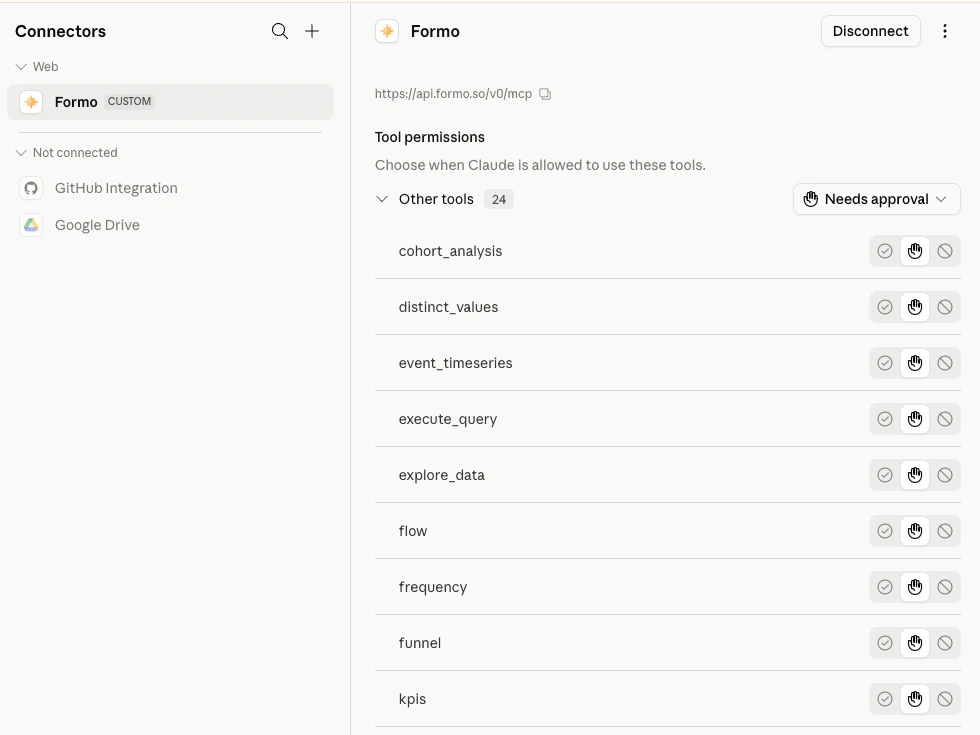 Claude.ai stores and refreshes the OAuth connection for the signed-in user. In managed workspaces, an owner or admin may need to add the remote MCP server before members can connect it individually.
1. Open your MCP client's connector or app settings
2. Add a remote MCP server
3. Enter the Formo MCP server URL:
```text theme={null}
https://api.formo.so/v0/mcp/
```
4. Choose OAuth if the client asks for an authentication method
5. Save or connect the server
6. Sign in to Formo, select a project, and approve access
If the client asks for scopes, request the permissions you need (for example `query:read`) plus `offline_access` if it needs to refresh.
## Scopes
Formo MCP OAuth supports the following scopes:
| Scope | Description |
| :- | :- |
| `profiles:read` / `profiles:write` | Read or manage wallet profiles |
| `query:read` | Analytics and SQL tools for the selected project |
| `alerts:read` / `alerts:write` | Read or manage alerts |
| `boards:read` / `boards:write` | Read or manage charts and boards |
| `contracts:read` / `contracts:write` | Read or manage tracked contracts |
| `segments:read` / `segments:write` | Read or manage segments |
| `offline_access` | Allows the MCP client to refresh access without asking the user to sign in again |
> OAuth access is bound to the project selected on the Formo consent page. The MCP server validates that the user still has access to that project before serving requests.
## Troubleshooting
* **`403 MCP access requires a Scale or Enterprise plan`:** The signed-in workspace is on a Growth plan. MCP authorization is gated server-side, so the OAuth flow will not complete. [Upgrade the workspace](https://app.formo.so) to a Scale or Enterprise plan, then reconnect.
* **Client does not start OAuth:** Confirm the MCP server URL is exactly `https://api.formo.so/v0/mcp/` and includes the trailing slash.
* **Invalid scope:** Request supported scopes only (see the table above), plus `offline_access` when refresh is needed.
* **Consent page asks you to sign in again:** Sign in to Formo and you will be returned to the same OAuth authorization flow.
* **No projects are available:** The signed-in Formo account must be an owner or admin of a team with at least one project.
* **Project access denied after connecting:** Reconnect and choose a project that your Formo user can still access.
* **API key stopped working:** OAuth does not replace API keys. Check that the key has the permission the failing tool needs (analytics and SQL need `query:read`), has not been revoked, and is sent as `Authorization: Bearer `.
## OAuth discovery
Most OAuth-capable MCP clients discover Formo's OAuth configuration automatically from the MCP server URL:
```text theme={null}
https://api.formo.so/v0/mcp/
```
Unauthenticated requests return a `401` with a `WWW-Authenticate` challenge that points clients to Formo's protected resource metadata. Access tokens expire after 1 hour; clients that request `offline_access` can refresh access without asking the user to sign in again.
| Metadata | URL |
| :- | :- |
| Protected resource metadata | `https://api.formo.so/.well-known/oauth-protected-resource/v0/mcp` |
| Authorization server metadata | `https://api.formo.so/v0/mcp/oauth/.well-known/oauth-authorization-server` |
| OpenID configuration alias | `https://api.formo.so/v0/mcp/oauth/.well-known/openid-configuration` |
The `openid-configuration` path is an alias that returns the same OAuth authorization-server metadata for clients that look there. Formo MCP is OAuth 2.0 only and does not implement full OpenID Connect.
This documentation is built and hosted on [Mintlify](https://mintlify.com), a developer documentation platform.
Claude.ai stores and refreshes the OAuth connection for the signed-in user. In managed workspaces, an owner or admin may need to add the remote MCP server before members can connect it individually.
1. Open your MCP client's connector or app settings
2. Add a remote MCP server
3. Enter the Formo MCP server URL:
```text theme={null}
https://api.formo.so/v0/mcp/
```
4. Choose OAuth if the client asks for an authentication method
5. Save or connect the server
6. Sign in to Formo, select a project, and approve access
If the client asks for scopes, request the permissions you need (for example `query:read`) plus `offline_access` if it needs to refresh.
## Scopes
Formo MCP OAuth supports the following scopes:
| Scope | Description |
| :- | :- |
| `profiles:read` / `profiles:write` | Read or manage wallet profiles |
| `query:read` | Analytics and SQL tools for the selected project |
| `alerts:read` / `alerts:write` | Read or manage alerts |
| `boards:read` / `boards:write` | Read or manage charts and boards |
| `contracts:read` / `contracts:write` | Read or manage tracked contracts |
| `segments:read` / `segments:write` | Read or manage segments |
| `offline_access` | Allows the MCP client to refresh access without asking the user to sign in again |
> OAuth access is bound to the project selected on the Formo consent page. The MCP server validates that the user still has access to that project before serving requests.
## Troubleshooting
* **`403 MCP access requires a Scale or Enterprise plan`:** The signed-in workspace is on a Growth plan. MCP authorization is gated server-side, so the OAuth flow will not complete. [Upgrade the workspace](https://app.formo.so) to a Scale or Enterprise plan, then reconnect.
* **Client does not start OAuth:** Confirm the MCP server URL is exactly `https://api.formo.so/v0/mcp/` and includes the trailing slash.
* **Invalid scope:** Request supported scopes only (see the table above), plus `offline_access` when refresh is needed.
* **Consent page asks you to sign in again:** Sign in to Formo and you will be returned to the same OAuth authorization flow.
* **No projects are available:** The signed-in Formo account must be an owner or admin of a team with at least one project.
* **Project access denied after connecting:** Reconnect and choose a project that your Formo user can still access.
* **API key stopped working:** OAuth does not replace API keys. Check that the key has the permission the failing tool needs (analytics and SQL need `query:read`), has not been revoked, and is sent as `Authorization: Bearer `.
## OAuth discovery
Most OAuth-capable MCP clients discover Formo's OAuth configuration automatically from the MCP server URL:
```text theme={null}
https://api.formo.so/v0/mcp/
```
Unauthenticated requests return a `401` with a `WWW-Authenticate` challenge that points clients to Formo's protected resource metadata. Access tokens expire after 1 hour; clients that request `offline_access` can refresh access without asking the user to sign in again.
| Metadata | URL |
| :- | :- |
| Protected resource metadata | `https://api.formo.so/.well-known/oauth-protected-resource/v0/mcp` |
| Authorization server metadata | `https://api.formo.so/v0/mcp/oauth/.well-known/oauth-authorization-server` |
| OpenID configuration alias | `https://api.formo.so/v0/mcp/oauth/.well-known/openid-configuration` |
The `openid-configuration` path is an alias that returns the same OAuth authorization-server metadata for clients that look there. Formo MCP is OAuth 2.0 only and does not implement full OpenID Connect.
This documentation is built and hosted on [Mintlify](https://mintlify.com), a developer documentation platform.